Skip to content
ReclaimBenchBY SMARTFACT

FREE RETURNS AND COMPONENT RECOVERY

How to label recovered parts

Updated

Labelling a recovered part means marking it as soon as it comes out of the unit with what it is, its part and serial number and a code that finds its record, so it can't be mixed up with new stock or another return's parts. ReclaimBench prints a QR label for each recovered part, 100 × 50 mm or eight to an A4 sheet, and scanning it opens the part's current record: where it came from, its checks and where it is now.

Free to use. No account, email address or trial. Works offline once prepared.

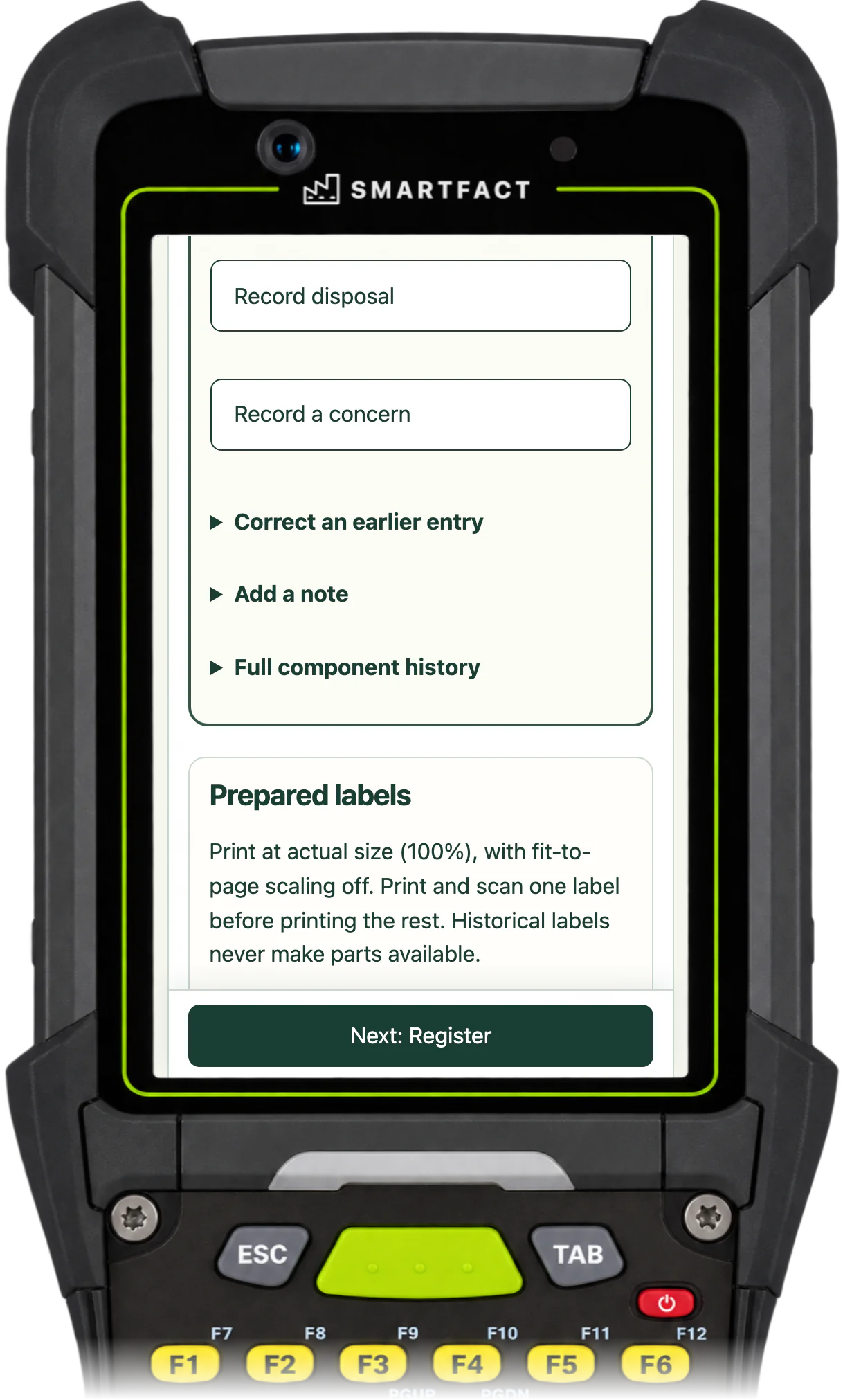
ReclaimBench Prepared labels: print at actual size (100%) with fit-to-page scaling off, print and scan one label before printing the rest, and historical labels never make parts available
A QR label prepared for a recovered part, on a handheld or scan station.

What goes on the label, and what stays in the record

A ReclaimBench component label carries the part code, revision and manufacturer serial, a short reference and a QR code that holds the part's exact local reference, written out in full below it. It says ReclaimBench local record and Check the app before use. The part's status, checks and destination are never printed, because they change: they stay in the record the label opens.

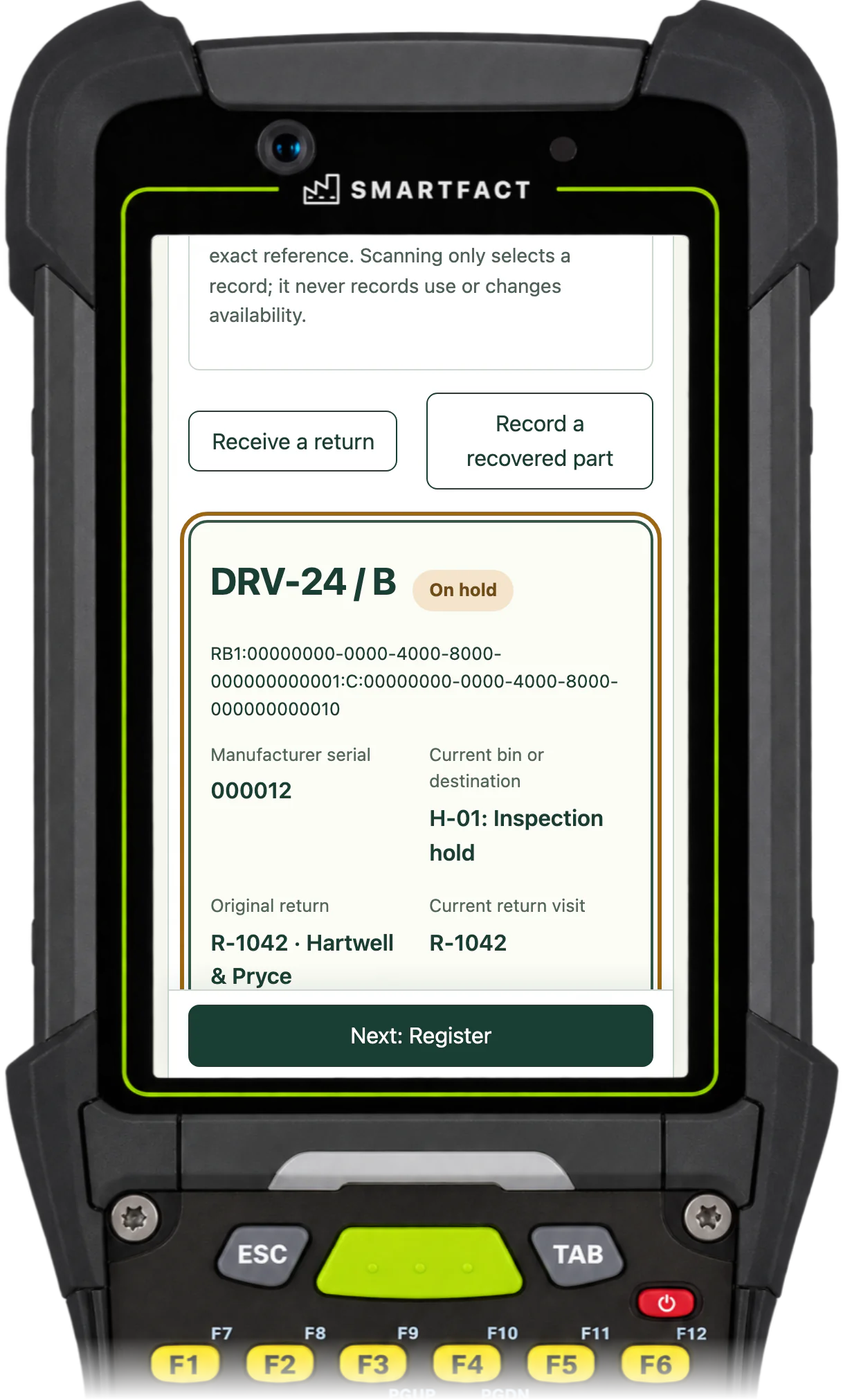
ReclaimBench record of driver DRV-24, revision B, on hold: its own RB1 reference, manufacturer serial 000012, current bin H-01 Inspection hold and original return R-1042 from Hartwell & Pryce
What the label opens: the state, bin and return stay in the record.

A label printer or A4 sheets, printed at actual size

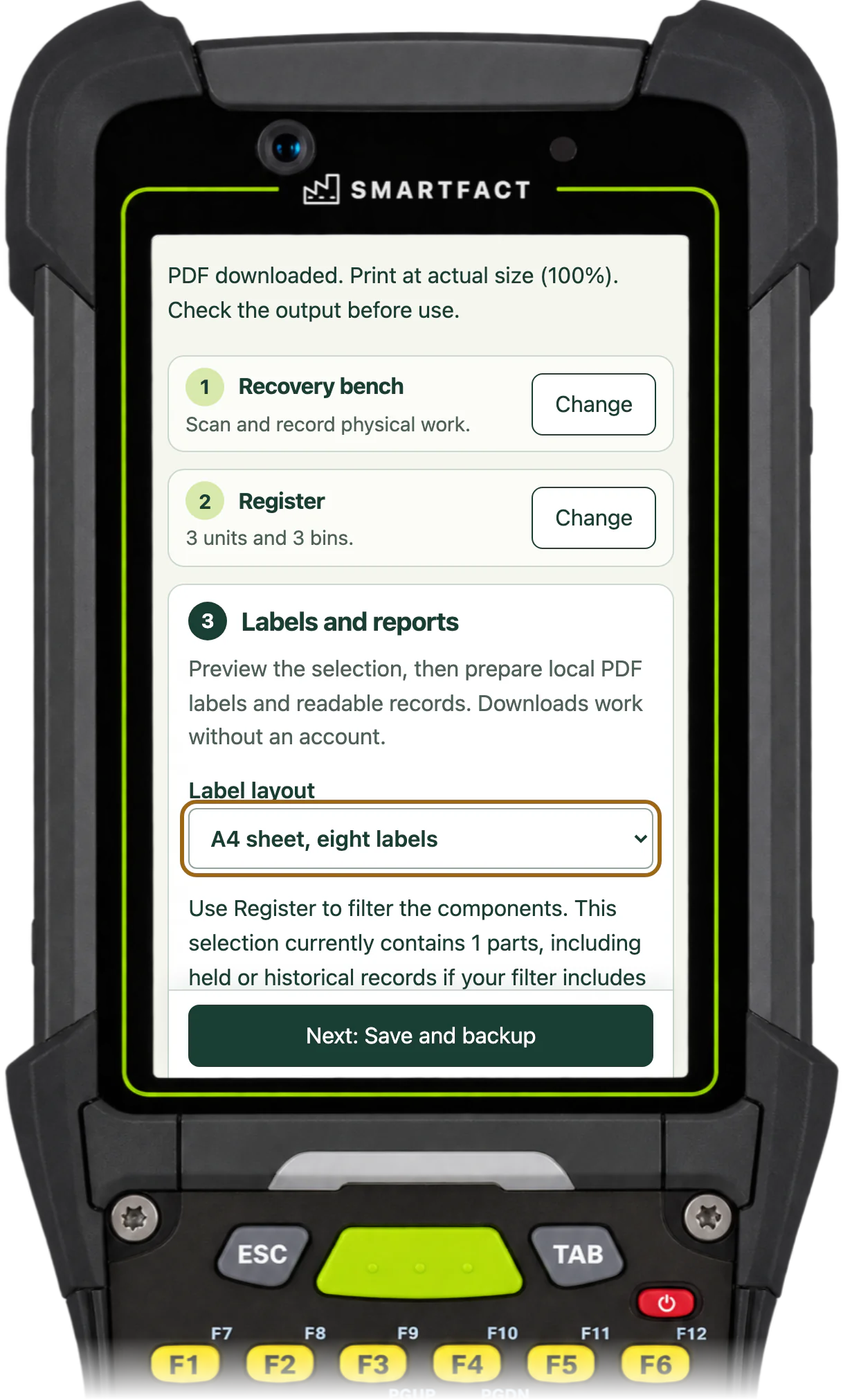
Choose a 100 × 50 mm label, one to a page, for a label printer, or an A4 sheet of eight 99.1 × 67.7 mm labels for an office printer. Print the PDF at 100%, without fit-to-page scaling, and scan one label before printing a batch. Up to 200 labels download at a time, and a label is never cut short: if a value does not fit, the download stops with a reason.

ReclaimBench labels and reports with the label layout set to A4 sheet, eight labels
Choosing an A4 sheet of eight for an office printer.

Scan the label to see where the part came from

Scan the QR code with a 2D keyboard scanner or the device camera, or type the reference, and ReclaimBench opens the part's record: its part code, revision and serial, its source return, its state and where it is now. A scan only opens the record; recording a check, a move or a use is always a separate, reviewed step.

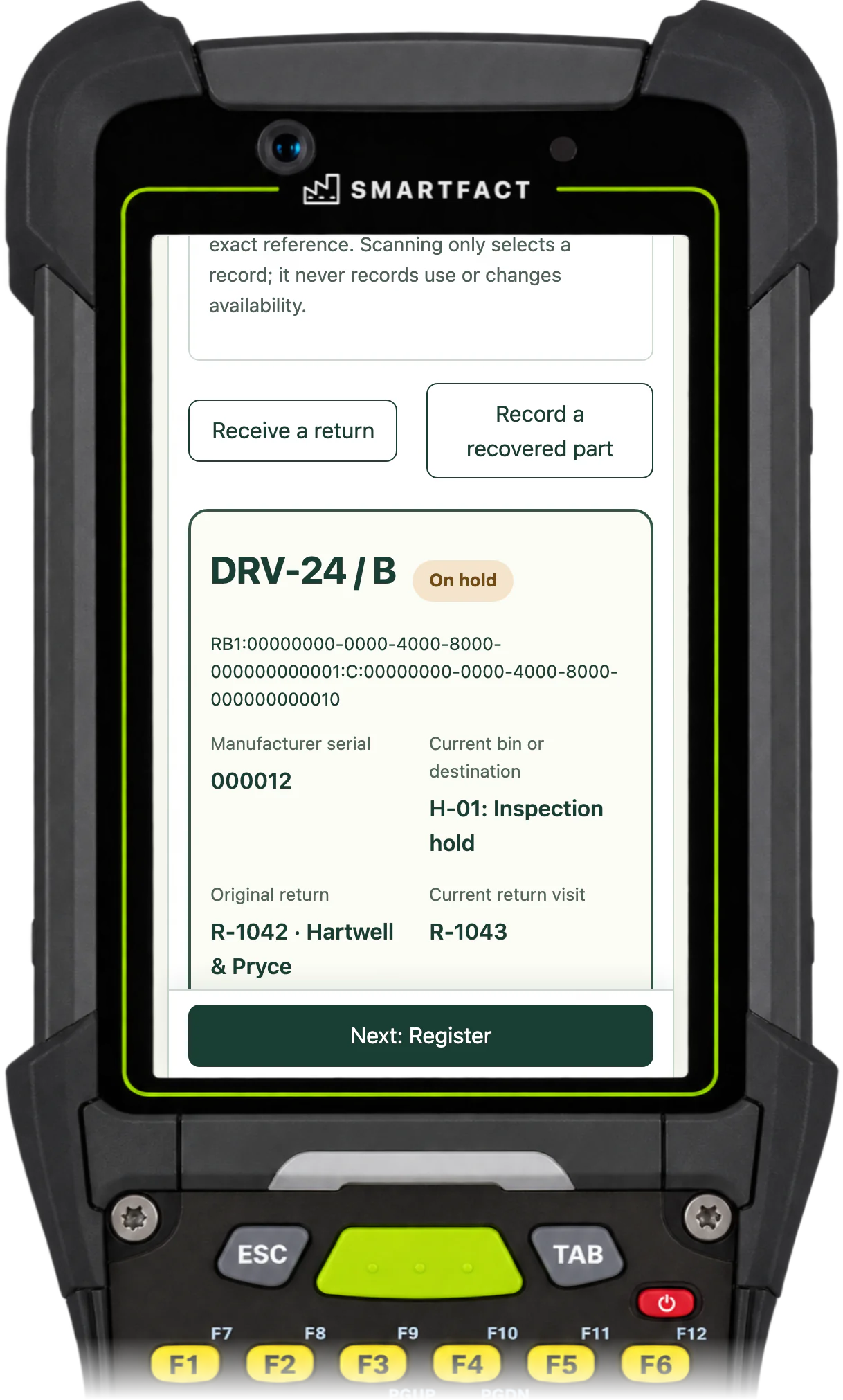
ReclaimBench record of driver DRV-24, revision B, opened from its label: manufacturer serial 000012, current bin H-01 Inspection hold, original return R-1042 and current return visit R-1043
A scanned label shows the part's original return and its latest return visit.

A label from another register is refused

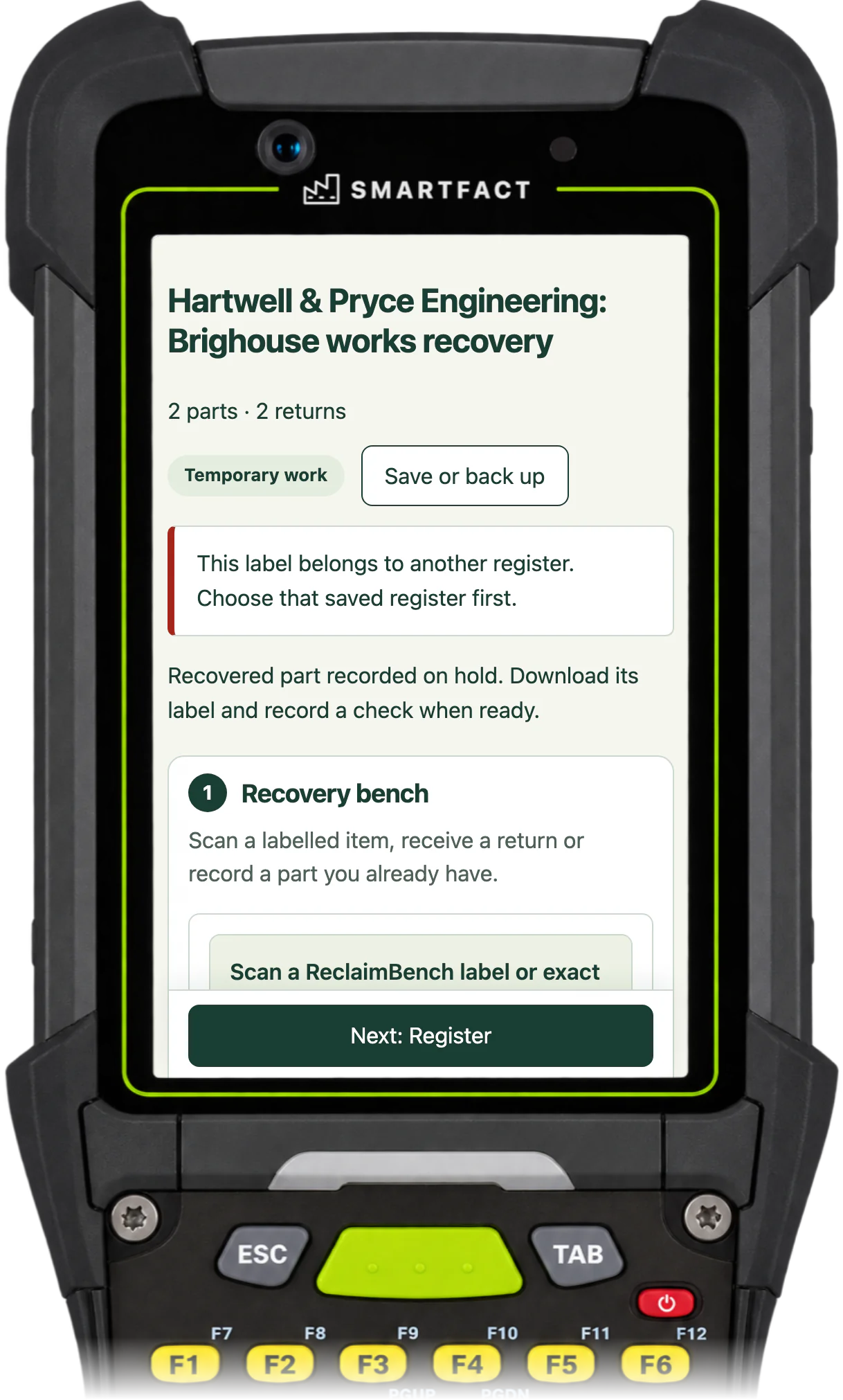
Each label belongs to the register that made it. Scanning a label from another ReclaimBench register says so, and nothing is opened or created: open the matching register instead. An unknown barcode or a manufacturer's own code is not taken as a part's identity either.

ReclaimBench refusing a scanned label: This label belongs to another register. Choose that saved register first.
A label from another register opens nothing.

Reprints keep the same identity

A damaged or lost label can be printed again from the part's record. The new label carries the same reference, so the reprint opens the same part with its whole history. Reprinting never creates a new part, and printing a used or disposed part's label again never makes it available.

Keep the history with the part

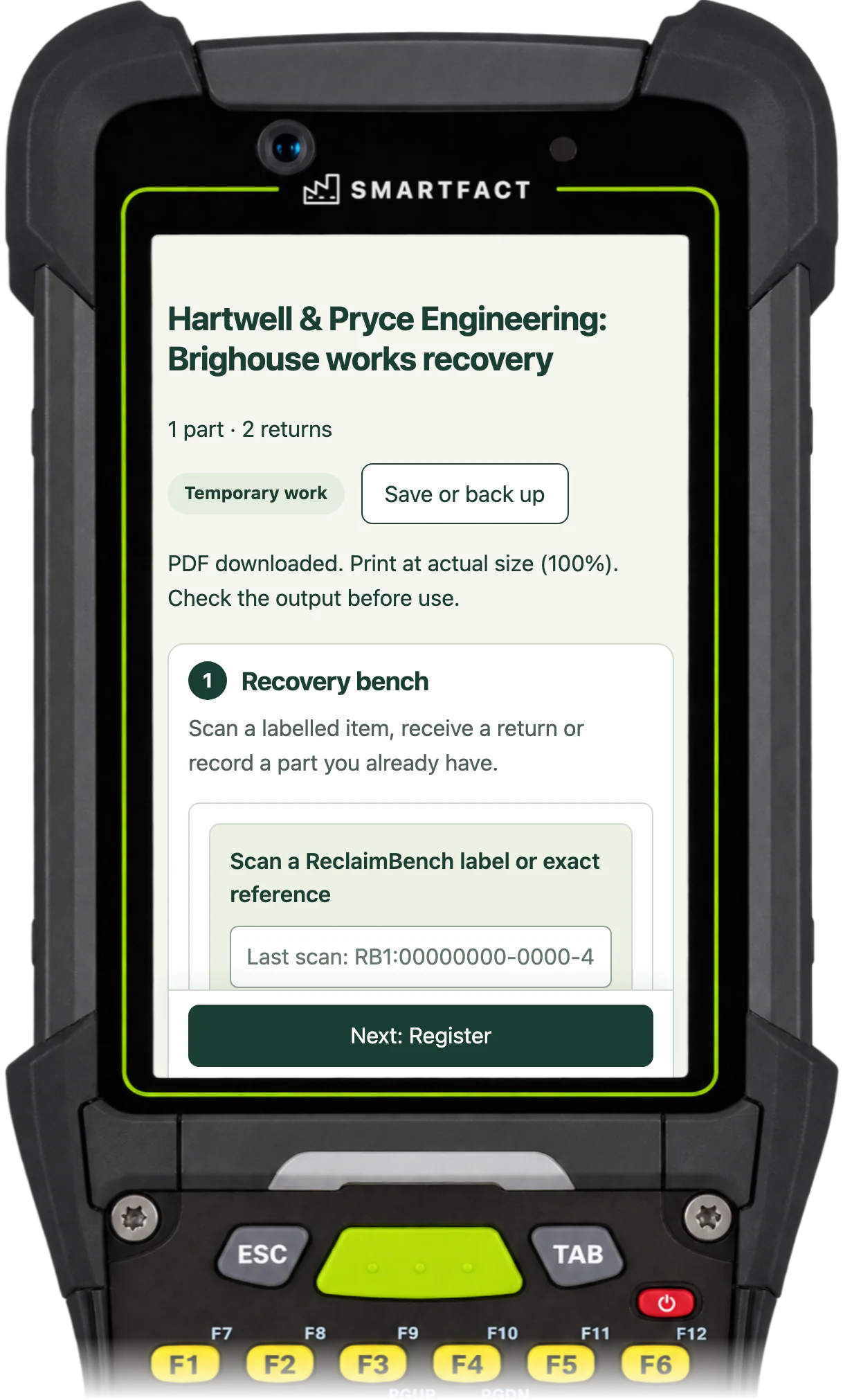
The label opens the record, and the record keeps the history. From any part, download its component history PDF: its source return, recovery, checks, availability, fittings, removals and corrections, as at the moment you download it. Keep the JSON backup as well: it is the file that restores the register.

ReclaimBench saying PDF downloaded. Print at actual size (100%). Check the output before use.
The component history, downloaded as a PDF.
MADE FOR THE FLOOR

For repair and build bench technicians and refurbishers who put recovered parts into bins and need to tell them apart from new stock and from each other.

A USEFUL STARTING POINT

A part in a bag with a note is a part nobody can trace

Handwritten notes come off, and a label that says checked is wrong the moment the part fails its next check. ReclaimBench prints a QR label that identifies the part and opens its current record, so the status always comes from the record and never from old paper. Reprints keep the same identity, so a new label never makes a new part.

FROM QUESTION TO EVIDENCE

Three steps to a useful result.

  1. 01

    Record the part

    Record the recovered part with its source return, part code, revision and serial. ReclaimBench gives it its own identity.

  2. 02

    Download its label

    Choose 100 × 50 mm or an A4 sheet of eight and download the PDF. Print it at actual size on your own printer.

  3. 03

    Scan it later

    Scan the label with a 2D scanner or the camera to open the part, check it or record where it is used.

A CONCRETE EXAMPLE

One label, the current record

A DRV-24 driver recovered from return R-1042 gets a 100 × 50 mm QR label with its part code, revision B and serial 000013. While it waits in H-01 Inspection hold, scanning the label opens it as held. After its check it is made available, and the same label then opens it as available, with nothing reprinted.

USED IN PRODUCTION

From one bench to the whole team.

ReclaimBench is one person's register on one device. When several people recover, check and fit parts, ReclaimStation keeps one shared record, with independent release, reservations and approved reuse rules. It is an invited trial, with scope agreed with you.

Invited trial

ReclaimStation

ReclaimStation books returned units in at a handheld or scan station, gives every recovered part its own label and keeps it held until its checks are reviewed and a second person releases it. A released part is reserved for a named unit and both are scanned when it is fitted, and a concern holds every affected part and lists the units already fitted.

BEFORE YOU START

A few practical answers.

Can a barcode scanner read the label?

A scanner that reads 2D codes can, and so can the device camera. The labels carry a QR code only, so a scanner that reads only one-dimensional barcodes cannot read them; the reference printed below the code can be typed instead.

Does reprinting make a new part?

No. A reprinted label carries the same reference and opens the same part, with its whole history.

Which label sizes are there?

A 100 × 50 mm label, one to a page, and an A4 sheet of eight 99.1 × 67.7 mm labels. Both are PDFs to print at actual size on your own printer.

What are the current limits?

ReclaimBench is one person's register on one device, for individual parts. There is no shared team stock, reservation, sign-in or independent approval: a local check is your own record. It has no photos or attachments, no spreadsheet import, no bulk quantities and no direct connection to a printer: labels and reports are PDFs for your own printer, with QR codes only, which a scanner that reads only one-dimensional barcodes cannot read. A register is one saved file of at most 5 MiB, and copies on different devices do not synchronise. A source mix-up cannot be corrected by moving a part to another return: it stays held with an unresolved concern. Labels and reports show what was recorded, not proof of a part's condition or that it is safe to reuse.

What happens to my data?

Your register stays in this browser. Work starts in memory and is lost on refresh until you choose Save on this device or download a backup. Nothing you record, scan or download is uploaded, and camera images are decoded on your device and never stored. No account or contact details are needed. Google Analytics is optional and loads only after you accept; it never receives part codes, serials, return references, notes, label codes or file contents. Use Analytics settings on these pages or in the tool to change your choice; see /privacy/.

ONE SMALL JOB, DONE WELL

Put ReclaimBench to work.

Open the free tool and start with one known example.

Track recovered parts free →

THE SMARTFACT SUITE

Practical tools. Useful on their own.
Better around the same floor.

Automate factory decisions with rules you describe in plain English. Explore focused SmartFACT services, plus free tools for everyday checks.

Invited trialSuggested next step

ReclaimStation

Book returned units in, recover and label the usable parts, release them independently and record the unit each goes into. Explore an invited trial for one product family.

Explore ReclaimStation ↗
Invited trial

LabelRules

Describe label rules in plain English. Automatically select layouts, resolve customer codes and check each job before printing.

Explore LabelRules ↗
Early access

KitProof

Turn plain English component rules into automatic kit checklists, then check scans against the expected parts and quantities.

Explore KitProof ↗
Early access

WorkSteps

Turn plain English rules into automatic step selection for each unit, with required evidence and a record of completed work.

Explore WorkSteps ↗
Early access

FactorySpec

Apply approved product rules and calculations automatically to turn dimensions and options into manufacturing requirements.

Register early-access interest ↗
Early access

ConfigSheets

Bring data in from uploaded sheets or the Shopify, WooCommerce and PrestaShop connectors, check each change and deliver it to the products that use it.

Explore ConfigSheets ↗
Early access

ParcelOffice

Scan the work order and the parcel choice to book the courier and print the labels. Approved plain English rules recommend or choose the parcel.

Explore ParcelOffice ↗
Early access

RefillFlow

Scan an empty container to send the right refill request to stores. Approved plain English rules set the stores queue, priority, ticket printer and escalation.

Explore RefillFlow ↗
Early access

RemnantRack

Label each offcut, find a suitable length before cutting new stock and record what you used. Approved plain English rules decide what to keep and where it goes.

Explore RemnantRack ↗
Invited trial

ToolCustody

Check a shared tool before handover, record who has it and keep damaged or overdue tools out of the next issue. Explore an invited trial for one factory crib.

Explore ToolCustody ↗
Invited trial

StoresFlow

Receive, put away, reserve and issue stores material with barcode checks, keeping held, reserved and available stock apart. Explore an invited trial for one stockroom.

Explore StoresFlow ↗
Invited trial

LotTrail

Follow a lot or serial number through the records your factory already keeps, with the source of each link and the gaps shown. Explore an invited trial with two declared sources.

Explore LotTrail ↗
Early access

CheckStation

Scan an identified unit to get its approved final-inspection checks, then record exact readings with their result, holds and release history.

Register early-access interest ↗
Free tool

ScannerBench

See the text and key events your keyboard scanner sends. Compare them with the value you expected.

Test a scanner ↗
Free tool

PrintBench

Print a known PDF, measure its reference marks and compare scans from the printed codes.

Check a print ↗
Free tool

CardBench

Create 100 × 50 mm bin and rack cards with Code 128 or QR, from one record or a CSV.

Make bin cards ↗
Free tool

CountBench

Count stock by location with a barcode scanner, compare it with a stock file and export the results. No account needed.

Start a free count ↗
Free tool

BarcodeBench

See exactly what a scanned barcode contains, with hidden characters shown and GS1 fields, check digits and dates explained. No account needed.

Inspect a barcode ↗
Free tool

MatchBench

Scan a reference and each label, see an exact match or the first difference, and download the results. No account needed.

Start a free comparison ↗
Free tool

TagBench

Scan an item or location, note what needs attention, print a review tag and keep a review list. No account needed.

Make a free tag ↗
Free tool

FindBench

Load your own parts and locations CSV, scan a code and see every location it lists. No account needed.

Start a free lookup ↗
Free tool

ManifestBench

Check cartons, pallets or serial numbers against a list with a phone or scanner and see what is missing. No account needed.

Start a free check ↗
Free tool

FeedBench

Check CSV and JSON files exactly as written, preview a column mapping and compare two versions by key. No account needed.

Check a file free ↗
Free tool

CycleBench

Time work cycles and changeovers on a phone, record interruptions with reasons and download the results. No account needed.

Start a free study ↗
Free tool

OffcutBench

Label the offcuts on your rack, find a piece long enough before cutting new stock and record what you used. No account needed.

Track offcuts free ↗
Free tool

TraceBench

Load one or two CSV exports and follow a lot or serial forwards or backwards, with the row behind every link. No account needed.

Start a free trace ↗
Free tool

ReclaimBench

Record the parts recovered from each return, label them with a QR code, check them and record the unit each one goes into. No account needed.

You are here
Help

SmartFACT Help

Step-by-step guides and interactive demonstrations for the SmartFACT suite. Read the instructions, watch a task or practise with real product screens and sample data.

Open SmartFACT Help ↗